

Codes are created under Settings → QR codes. There are three ways, and the one to pick depends less on how many you need than on whether you already know where each one goes.
| Situation | What to do |
|---|---|
| One code for one particular room | The Add button |
| Covering a whole floor or building whose rooms already exist | A batch by location |
| Printing ahead of time, for fitters to put up | A batch of blank codes |
A single code
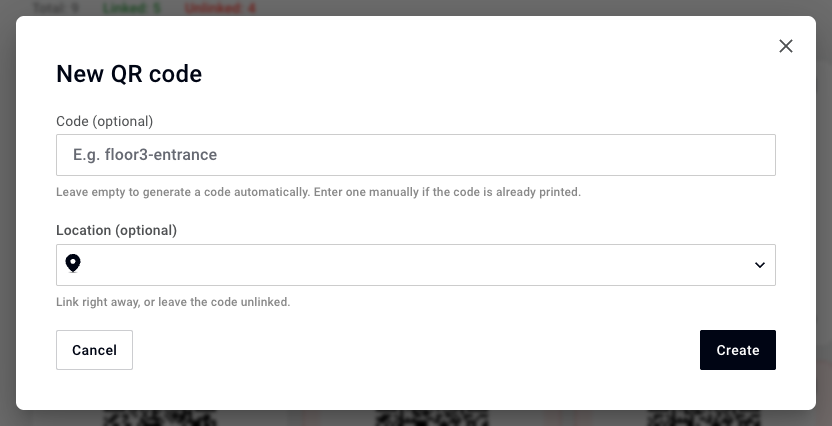
One code by hand: the value can be your own, and the binding can be made now or later.
The value can be your own — floor3-entrance, say — or the field can be left empty and the system will invent a random one. The location, likewise, can be set now or left for later.
A value of your own is only worth setting when the code is already written down somewhere — in an instruction, on an existing plate. Everywhere else random is better: it cannot be guessed.
A batch of codes
The Generate button starts by asking what kind of batch you need.
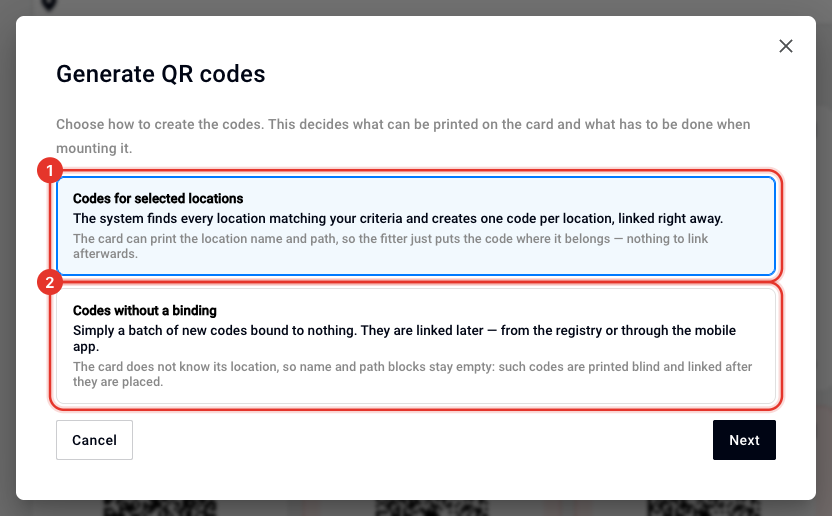
A batch can be made two ways: one code per location, or blank codes that are bound when they go up on the wall.
The difference is not convenience but what can be printed on the card:
- Codes for chosen locations — one code per room, bound as it is created. The card can carry the room's name and its full path: the system knows where this code is going.
- Blank codes — no binding. There is nothing to print on the card but a numbered caption, and in exchange the codes can go anywhere and be bound on the spot.
A batch by location
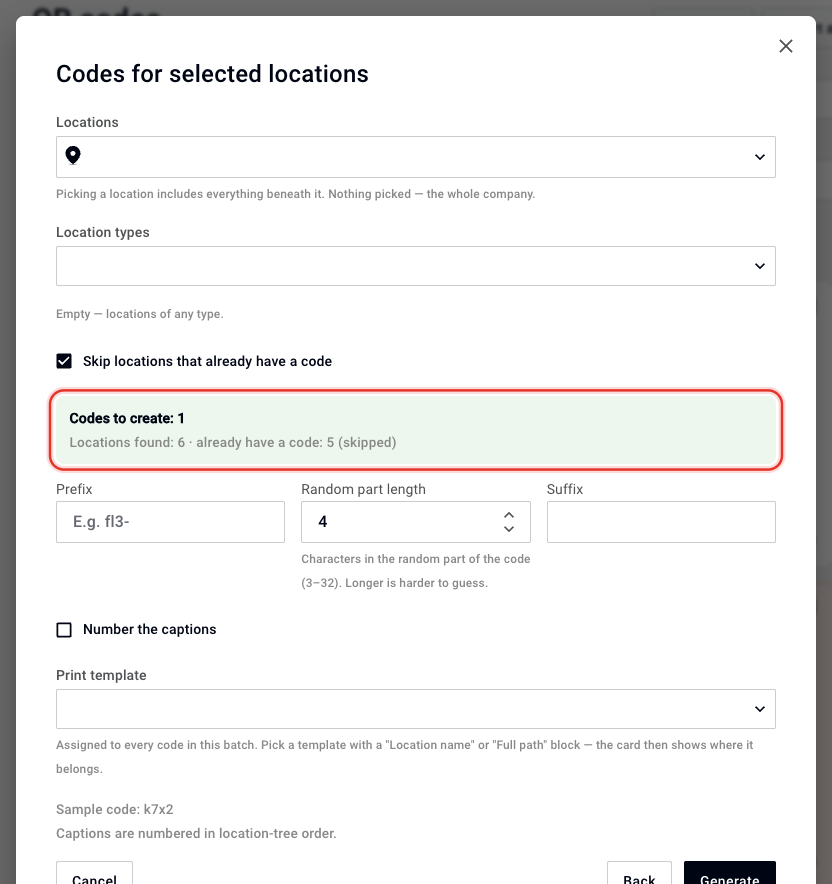
A batch by location: the system counts what it would create and leaves alone the places that already have a code.
Picking a location includes everything inside it, so naming a floor or a building is usually enough. The Skip locations that already have a code tick is on by default for a reason: without it, a second run would create a second code for the same room.
The summary line is recalculated on every change and says exactly what will happen: how many locations were found, how many already carry a code, and how many codes will be created. Read it before pressing Generate — it is the only way to be sure the batch is the one you meant.
A batch of blanks
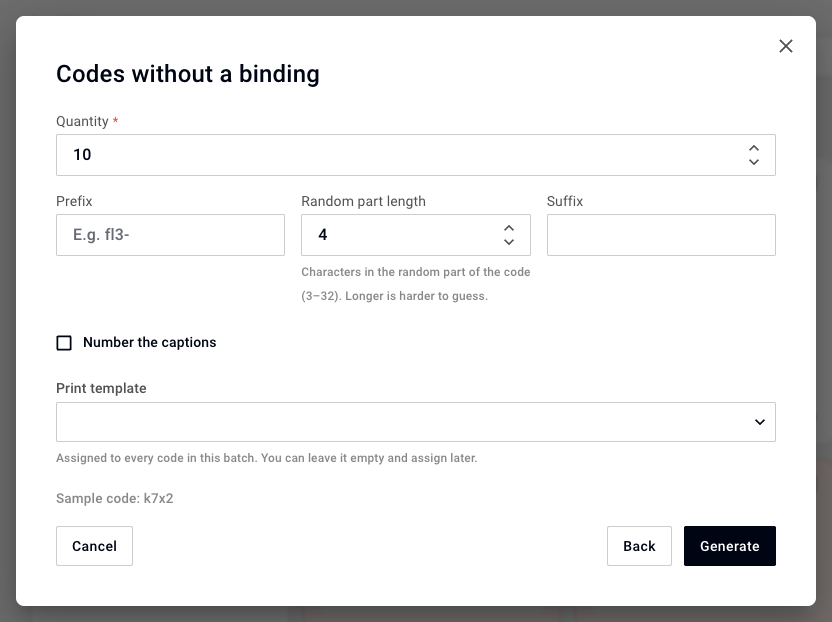
A batch of blanks: how many, how long the random part is, and where the printed numbering starts.
Here you set how many, and what the codes and captions will look like:
- Random part length — how many characters the code has. The longer it is, the harder it is to guess; 4–8 characters is almost always enough.
- Prefix and suffix — optional fixed affixes, the same for the whole batch. Handy for telling one batch from another.
- Number the captions — captions get consecutive numbers: 100, 101, 102… The starting number and the digit width are set next to it (4 digits → 0100, 0101).
A caption is not the code. It is printed on the card as human-readable text so the fitter knows which sticker is in their hand and can tick it off their list.
Binding a code to a room
Binding is done from the mobile app, by whoever is putting the codes up: open the "QR code" tab → "Binding", point the camera, pick the room.
A code can also be bound and unbound from the registry, on its card. That is the comfortable way to fix a mistake without leaving the office.
Finding the codes you need
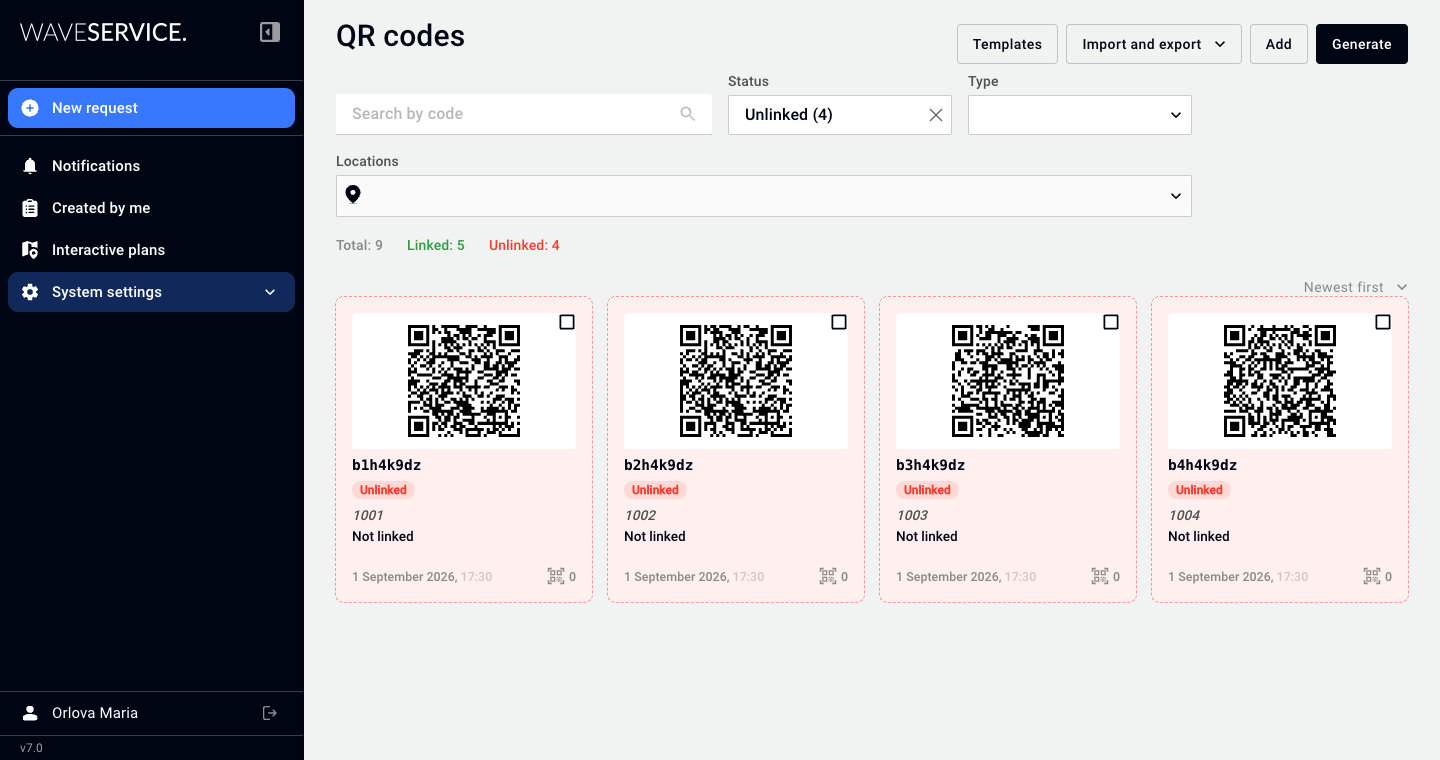
The "Unlinked" filter shows the batch that has been printed but not yet stuck to anything.
The Status → Unlinked filter shows precisely the batch that has been printed but not yet stuck up — which is usually the one you want. There is also a search by code value and caption, a filter by binding type, and one by location (picking a location includes everything inside it).